
Narrivelle
All products template
Use the dedicated All products collection page instead of the normal collection header.
Collections and search
Create the dedicated All products page
Narrivelle includes a separate `collection.all-products` template. It uses All products header and Collection product grid, rather than the normal Collection header.
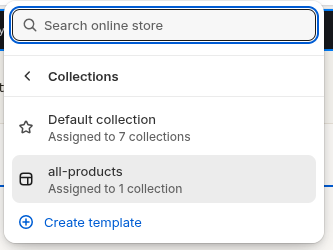
Create the All collection in Shopify
In Shopify Admin, go to Products → Collections and create a collection named All. Ensure it contains every product you want customers to browse from the All products page.
Assign the dedicated template
Open the All collection in Shopify Admin. In Theme template, choose `collection.all-products`, then save. Do not assign this template to normal editorial or category collections.
Configure the All products header
Open Customize → Collections → All products. Eyebrow, Heading, Intro, and Text alignment control the dedicated introduction above the product grid.
Configure the shared product grid
The All products template uses the same Collection product grid settings as normal collections: columns, pagination, image ratio, variants, quick view, description, filters, sorting, and count.
Settings reference
Use this reference while working in the Theme Editor. Setting names match the Narrivelle controls.
| Theme Editor setting | What it controls | Use and review |
|---|---|---|
| All products header → Eyebrow / Heading / Intro | Creates the dedicated introduction for the All products collection. | These values are template content, not the Shopify collection title or description. |
| All products header → Text alignment | Aligns the dedicated header content left, center, or right. | Center is the default presentation. |
| Collection product grid | Controls the product browsing grid in the All products template. | Use the same grid controls described for the normal Collection template. |