
Narrivelle
Cart settings
Configure the normal cart destination and customer notes.
Theme settings
Choose and test the cart experience
Open Theme settings → Cart. Narrivelle supports both Cart drawer and Cart page while Shopify remains responsible for final checkout calculations and payment availability.
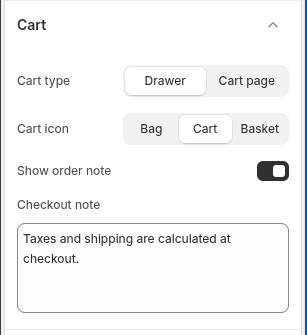
Cart type and icon
Choose Cart drawer for an overlay cart experience or Cart page for a dedicated route. Select the bag, cart, or basket icon that best fits the store’s visual language, then test adding a product from product and collection contexts.
Order note
Enable Show order note only if the store has a clear reason to collect a customer note. Test the field at compact widths and make sure your fulfilment workflow actually uses the information submitted.
Checkout note
Use Checkout note only for a short informational message such as taxes and shipping being calculated at checkout. Do not make claims that conflict with Shopify discounts, shipping, tax, payment, or market data.
Settings reference
Use this reference while working in the Theme Editor. Setting names match the Narrivelle controls.
| Theme Editor setting | What it controls | Use and review |
|---|---|---|
| Cart type | Chooses the destination after a customer adds a product: Cart drawer or Cart page. | Test add-to-cart from product pages, quick add where enabled, and collection cards. Keep one experience consistent across the store. |
| Cart icon | Chooses the header cart symbol: Bag, Cart, or Basket. | This is visual only. Choose the icon that matches your brand and confirm it remains recognisable at compact widths. |
| Show order note | Shows a customer order-note field in the cart. | Enable only when the fulfilment workflow uses the note. Test long notes, keyboard navigation, and the mobile cart. |
| Checkout note | Displays an informational message near the cart-to-checkout transition. | Keep this factual and short. Shopify calculates final tax, shipping, discount, and payment results at checkout. |