
Narrivelle
Colors
Set theme-wide surfaces, text, commerce, and overlay colors.
Theme settings
Build a readable color system
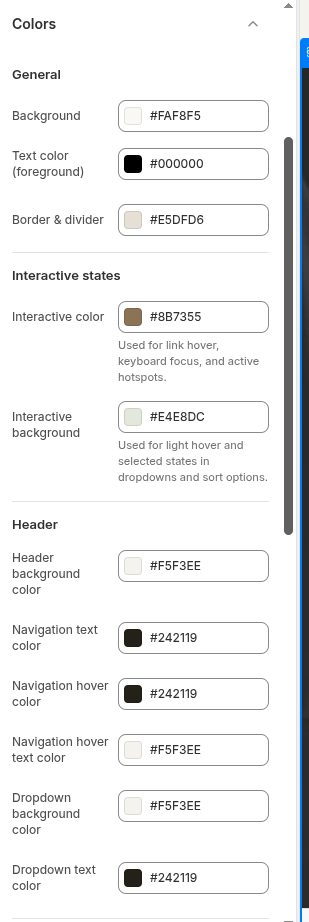
Open Theme settings → Colors. Narrivelle provides separate controls for global surfaces, header, announcement bar, footer, overlays, and commerce pricing states.
Core surfaces
Set background, foreground, border, interactive, and interactive-background colors as a coherent base. Preview normal text, links, controls, disabled states, and borders against each chosen surface.
Global groups
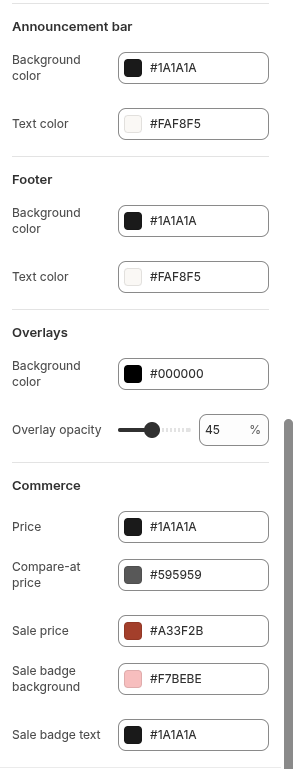
Header, announcement bar, and footer each have dedicated foreground and background controls. Configure dropdown and hover colors as well, then inspect the full navigation at desktop and compact widths.
Commerce and overlays
Set price, compare-at price, sale price, and sale badge colors separately. Overlay color and opacity protect text over editorial media; check light and dark images instead of relying on one preview.
Settings reference
Use this reference while working in the Theme Editor. Setting names match the Narrivelle controls.
| Theme Editor setting | What it controls | Use and review |
|---|---|---|
| Background / Foreground / Border and divider | Defines the core page surface, text, and divider colors. | Check default text, cards, fields, and boundaries on every primary surface. |
| Interactive color / Interactive background | Defines theme interactive accents and their supporting surface. | Ensure links and interactive states remain distinguishable without colour alone. |
| Header, announcement, and footer colors | Sets individual background and text colours for global groups, including header dropdown and hover states. | Test navigation, dropdowns, announcement copy, and footer links at all breakpoints. |
| Overlay color / Overlay opacity | Applies a protective overlay to media-based content. | Check both light and dark editorial imagery with real headline and CTA copy. |
| Price, compare-at, sale, and sale-badge colors | Styles commerce price hierarchy and sale states. | Test regular, sale, sold-out, and compare-at combinations for contrast and clarity. |